NinjaTrader Automated Trading by Algo Futures Trader

hybrid algorithmic automated futures trading for prop firm traders, day & swing traders

🚀 Get Started FREE
  • 🚀Get Started FREE
  • NinjaTrader
  • Get Funded
  • Trading Servers
  • Pricing
  • blog
  • Help

NinjaTrader Order Flow Indicators: AFT401 and OFA Dashboard for AFT8

October 7, 2026 by Tom Leeson

NinjaTrader Order Flow Indicators AFT401

It is easy to assume that adding more indicators will make trend-following or mean-reversion decisions clearer. But several indicators can rework the same price information, adding clutter without much independent context. A few well-chosen tools with specific purposes—or a disciplined price-action approach—can be easier to interpret than a crowded chart. Multiple timeframes can help too, when each view has a clear role.

Enter order flow: another dimension of the market. Instead of simply repackaging price movement, it lets you examine the activity accompanying it: the pace of trading, trade size, and classified buying and selling pressure. Price shows the outcome of the auction; order flow adds a view of participation behind that outcome.

AFT401 makes that extra dimension easier to read. It brings tape speed, average trade size, tick and volume delta, and price trend into one NinjaTrader 8 dashboard and distils their directional readings into OFA Bias %. Choose a compact, at-a-glance summary or a fuller view of the component gauges and tape. The chart also provides OFA Bias % Average as a smoothed reference.

Order flow made simpler: one dashboard, one number: the OFA Bias %
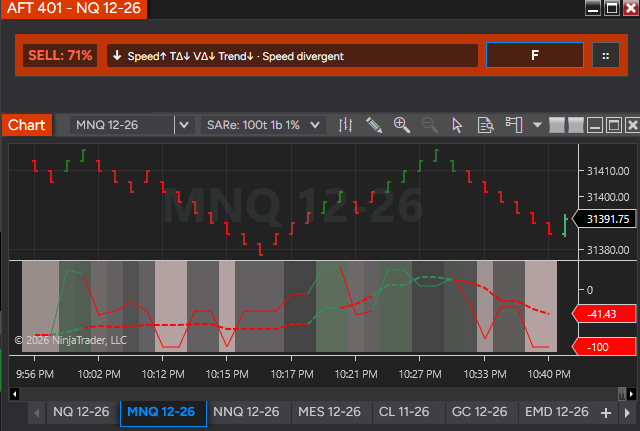
NinjaTarder Order Flow Analytics AFT401 one number one dashboard
NinjaTrader Order Flow Analytics AFT401 one number one dashboard OFA Bias %

Reading order flow should not require constantly switching between several platforms, subscriptions and displays. AFT401 condenses its core trade-flow measures into one dashboard and one number: the OFA Bias %. Choose the level of detail that suits your trading: a simple, at-a-glance bias reading in the compact view, or a fuller dashboard with component gauges, numerical summaries and the trade tape. Expand or collapse the sections as required to see what supports or contradicts the overall bias.

The OFA Bias Percentage uses a common percentage scale across instruments. This makes the presentation consistent when moving between markets whose prices, trade sizes and activity levels differ. It represents directional agreement within the observed flow—not a probability of a winning trade or a claim that different instruments have identical behaviour.

AFT401 brings this consolidated view into your existing NinjaTrader and AFT8 workspace. You do not need a separate order-flow platform or a Level 2 subscription specifically to use it; normal AFT, platform and applicable Level 1 market-data charges still apply.

A clearer chart reading with smoothing and crossover analysis

The bias also plots on the chart, alongside a configurable smoothed bias. The combined reading brings the observation periods together, while smoothing gives you a steadier reference against which to assess changes. You can examine crossings between the combined bias and its smoothed line, together with direction, persistence and price context, as part of a tested signal method.

Individual order-flow readings can change direction rapidly during a busy auction. The combined and smoothed views are designed to reduce the emphasis on those short-lived flips and make sustained bias easier to follow. Smoothing introduces delay and does not eliminate reversals; the detailed dashboard remains available when you need the immediate flow.

These chart readings support crossover analysis and bias filtering. Automated OFA entry and filter integration is a planned extension, as described below; a crossing by itself is not an automatic trading instruction.

A different dimension of the market

A price-based trend indicator summarizes the path price has taken. Order flow examines the transactions taking place along that path. Two moves of similar size can have different tape speeds, different average trade sizes and different balances of buying and selling activity.

AFT401 classifies trades at or above the ask as buys and trades at or below the bid as sells. Trades between the quotes are neutral. This describes the classified aggressor-side activity: every executed transaction still has a buyer and a seller.

That distinction gives the trader another dimension to examine alongside price structure. Strong buying activity with little upward progress raises a different question from strong buying activity accompanied by a rising price trend. AFT401 puts both measures on screen so you can see the relationship, rather than infer it from a candle alone.

It is a view of executed flow using the available feed’s bid, ask and trade updates. It does not identify individual traders or reveal the entire resting order book. Its value is in showing several aspects of observed market activity together.

AFT401 uses the feed’s bid, ask, and last-trade information to track executed activity. It does not identify the trader behind an order, and a large print alone does not prove institutional involvement. Nor is the dashboard a complete display of resting market depth. Its focus is the observed tape and its relationship with price.

What the AFT401 dashboard adds

  • Speed Δ: total trades per second and the balance of buy-side versus sell-side speed. It helps distinguish an active auction from a quieter tape and identify which side is contributing to that activity.
  • Avg Size Δ: average buy and sell trade size, using a configurable retained sample. This adds context when one side trades frequently but the other trades in larger size.
  • Tick Δ: the directional balance of individual trade prints.
  • Volume Δ: the directional balance of traded size. Comparing it with tick delta can reveal disagreement between frequency and volume.
  • Price: price direction relative to its configured averages, so you can compare the response of price with the flow.
  • Combined BUY / SELL / HOLD bias: a consolidated reading with notes about alignment and divergence. It summarizes the component readings without replacing your trading plan.

Realtime, Fast, Medium and Slow views give context at different horizons. All four continue calculating, so switching the dashboard mode does not discard the other views. The mode button lets you cycle through them without reopening the options panel.

Use the compact header and clocks for a quick check beside your chart. Enable the summaries, ticker and vertical gauges when you want to examine the component readings and individual prints. The display fits the visible sections, and you can save the layout for each instrument.

One engine, an indicator and a dashboard

The indicator owns the live OFA processing service. Incoming events enter a queue; a signal wakes the background worker, which drains the queued data and updates the calculations. Market-data processing is separate from the dashboard’s refresh interval.

That means the engine processes incoming activity without waiting for a dashboard redraw. The default display refresh is 200 milliseconds, configurable from 100 to 3,000 milliseconds. The chart follows its own NinjaTrader Calculate setting: on bar close by default, with on price change or on each tick available.

The architecture is designed for responsive real-time updates, rather than making the UI process every trade individually. It does not remove feed latency, computing time, or the deliberate smoothing introduced by a selected period.

You can run the chart indicator with the dashboard hidden. Pausing the dashboard freezes its display while processing and chart calculations continue. Closing the dashboard also leaves the indicator’s analytics running. During a window drag, dashboard refresh work is deferred so the window can move smoothly.

R, F, M and S: real-time activity alongside context

All four bias modes keep calculating in parallel:

  • R — Realtime: the current rolling trade sample and real-time tape-speed sample.
  • F — Fast: the configured fast period, default 10 seconds.
  • M — Medium: the configured medium period, default 60 seconds.
  • S — Slow: the configured slow period, default 300 seconds.

Realtime is not one universal time window. Current deltas and average size use the retained trade sample, while realtime speed uses a separate trailing sample, default five seconds. Fast, medium and slow provide time-based context, with periods configurable across speed, delta and price.

The dashboard defaults to Fast. Click the mode button beside :: to cycle R → F → M → S, or select a mode in the options panel. Changing the view selects the header bias and rolling delta gauges; it does not erase the other modes or restart their calculations. The clock gauges continue to show the different period needles together.

Speed of tape: how busy is the auction, and which side is driving it?

Tape speed measures individual trades per second. The dashboard shows total activity, buy-side speed, sell-side speed and the difference between them.

This lets you distinguish a busy but balanced tape from activity dominated by one side. A rising total rate does not, on its own, say BUY or SELL. The buy/sell speed balance supplies that directional information.

The realtime sample defaults to five seconds and is configurable. Fast, medium and slow rates add context over their configured windows. A burst that dominates the realtime view may remain a small part of the slow view; that difference is useful information about how recently the activity changed.

Average size: the size of the trades behind the tape

Avg Size Δ compares average buy-trade size with average sell-trade size. The sample defaults to 100 retained ticker rows and is configurable.

With aggregation enabled, one row can contain multiple consecutive prints sharing the same feed millisecond, price and classification. Individual trade counts are preserved, so average size is based on the underlying trades rather than treating an aggregated row as one large trade.

Speed and average size answer different questions. A fast tape can consist mainly of small prints. A slower tape can contain larger transactions. Viewing the side averages beside speed and volume delta helps you see that difference without assuming trade size identifies a particular type of participant.

Tick delta and volume delta: participation and size

Tick delta measures the balance of classified buy and sell prints:

Volume delta measures the balance of their traded volume:

Neutral trades remain in the denominators. Tick delta tells you about the balance of individual trades; volume delta tells you about the balance of traded size. They can disagree when one side trades more often but the other trades in larger size.

Both measures provide realtime values and fast, medium and slow time-weighted averages of the rolling delta percentages. Cumulative tick and volume delta add the longer balance since startup or reset, independently of the rolling sample.

The clock gauges show R/F/M/S and cumulative C needles. The longest dashed current needle sits in front, with its direction reflected in its color. Fast is cyan, medium gold and slow purple; cumulative is silver and dotted. Vertical gauges provide a larger numerical readout, with underlying buy/sell components and rolling extremes for further context.

Price: is the market responding to the flow?

The Price gauge provides a comparison with the actual movement of the traded price. Its trend percentage compares the fast and slow price averages, normalized by the rolling price range:

Fast, medium and slow price needles also compare the latest traded price with their respective averages. This helps you examine whether price direction agrees with the observed flow.

For example, positive deltas alongside weak price progress can highlight a disagreement worth investigating at a known level. Positive deltas with positive price trend describe a different state. Neither observation proves the next move; it gives you a more specific account of the current auction.

Combined direction: BUY / SELL / HOLD

AFT401 combines directional evidence across tape activity, trade size, delta, price and cumulative flow. Its percentage summarizes the balance of that evidence; it is not a probability of a profitable trade.

The default no-trade zone is −10% through +10%, including the boundaries. Above it, the dashboard displays BUY; below it, SELL; inside it, HOLD. The threshold is configurable. The percentage expresses the balance of the rules—it is not a forecast probability or an instruction to enter a trade.

The selected display mode determines the period-sensitive votes. Average-size and cumulative votes remain shared. Compact notes identify agreement or divergence, helping you see why a headline bias may be less convincing than it first appears.

Chart history, combined bias and smoothing

The chart has six data series: BiasR, BiasF, BiasM, BiasS, BiasWeighted and BiasWeightedSmoothed. The four period plots are transparent by default and can be made visible in the Plots settings.

The combined line brings the four period readings together:

BiasWeightedSmoothed is a configurable simple moving average of that combined line, default ten chart bars. That is bar-based smoothing, separate from the fast/medium/slow time windows.

Chart trend colors follow the combined bias direction, with configurable background and bar painting, colors, opacity and graduated strength. The dashboard shows the selected mode. A fast dashboard bias and a quieter combined chart reading can therefore coexist: the other periods may still oppose or dilute the newest activity.

For a compact workspace, use the header and clocks. For a detailed view, enable the numerical summaries, ticker and vertical gauges. The window fits the displayed sections, and its layout and mode are saved per instrument. Always on Top is available in the options panel.

A shared historical data aggregator

Optional recording preserves one snapshot per UTC minute for retrieval and analysis. Realtime submissions are limited to at most once per second; they enter a shared concurrent queue. A signalled background consumer updates the current minute and discards stale timestamps.

Every 60 seconds, a background writer appends completed minutes to an instrument-specific daily CSV. The history remains in memory after saving. Root-symbol folders avoid separate paths for each contract expiry, with date-sortable filenames such as ofa/NQ/2026-10-07.csv.

Records contain the instrument, UTC minute ticks, R/F/M/S, combined bias, smoothed bias and XBias (+1 BUY, 0 HOLD, −1 SELL). Double values retain full precision. At startup, the service loads saved histories; chart refreshes can retrieve them to restore the six plotted series.

That restores the recorded view, not the original trades. Live calculations still warm up from fresh market data after a restart. Missing minutes remain missing, and continuous-window retrieval rejects spans containing holes, so later analysis need not silently join disconnected sessions.

Using the view in a realtime trading workflow

Start with the trade location. Your price structure, session levels and entry method establish where a trade might make sense. Order flow adds evidence about the activity occurring there.

Compare the immediate reading with the slower context. A new Fast BUY reading while Slow remains negative can mark a developing change or a temporary counter-move. Inspect the component gauges before treating the headline as confirmation.

Look for participation and price response together. Speed, tick delta and volume delta leaning in the same direction, accompanied by price progress, describe broader agreement. A mismatch between tick and volume delta invites a closer look at trade size. Flow against price can be a reason to wait for clearer evidence.

Use HOLD and divergence to reduce unnecessary decisions. You do not need to turn every change of color into an entry. The configurable neutral zone and compact notes can help identify times when the flow offers little directional agreement.

Review what you saw. Saved chart history lets you revisit how the biases changed around your entries and exits. Keep the feed, sample settings, chart calculation mode and warmup state in mind when comparing sessions. Entry discipline, position sizing and exit management remain part of the trading process.

From discretionary context to AFT8 signal integration

AFT401 gives discretionary traders a consolidated order-flow view they can use alongside their existing technical workspace. The planned next stage is to expose OFA signals and filter bias alongside AFT8 algorithmic entry modules—for example, requiring directional agreement or filtering entries during HOLD conditions.

This signal/entry integration is a planned extension, not a claim that the current dashboard independently executes trades. The available release notes and component guide will describe the supported integration as it is delivered.

How to get AFT401 in NinjaTrader 8

AFT401 is targeted for AFT8 release 202615. Check the release information and your edition’s entitlement before installing. It is supplied through AlgoFuturesTrader; it is not a feature automatically included with a standard NinjaTrader installation.

  1. Set up your ATS account. Use Get Started with ATS for the account and onboarding path.
  2. Choose the appropriate AFT edition. Review the AFT plans and pricing, including instrument access and discretionary versus automated features. Confirm AFT401 availability for your release and license.
  3. Install or update AFT8. Follow the official instructions and obtain the compatible installer from ATS Downloads.
  4. Connect NinjaTrader to the appropriate data feed. Confirm that the instrument receives bid, ask and last-trade updates.
  5. Add the indicator to your chart. Open Indicators, locate AlgoFuturesTrader and select AFT 401 OFA – Deltas.
  6. Choose your view and apply. Review the periods, retained sample, HOLD threshold and chart calculation mode. Enable the dashboard if you want its separate window; it opens in realtime.
  7. Allow the sample to build. Start with the compact view, then enable detailed sections as needed. Turn on history recording if you want saved snapshots for retrieval.

Release and availability

Target release: AFT8 202615. Final availability and supported signal integration will be confirmed in the release information.

Plan availability: the proposed packaging is to include the indicator and dashboard in AFT Essentials, Premium and Ultimate within each edition’s permitted instruments, with automated entry/filter integration for Premium and Ultimate. Final AFT401 entitlement is to be confirmed before publication.

That approach brings live order-flow analytics into discretionary trading while keeping the automated workflow aligned with the higher editions. The current plan comparison distinguishes manual entry in Essentials, automated entry in Premium/Ultimate, micro futures in Essentials/Premium and broader instrument access in Ultimate.

Read the AFT401 indicator and dashboard guide for parameters, gauge meanings, history storage and troubleshooting. Compare editions on the AFT pricing page, or contact the ATS Help Desk for release and account questions.

Data requirement

Level 1 only: AFT401 uses last-trade price and volume plus best bid/ask quotes. No Level 2 market-depth subscription is required specifically for AFT401. Normal platform, AFT and applicable Level 1 exchange-data charges still apply. It does not provide a full order-book heatmap or depth ladder.

For the broader trading context, read Benefits of Order Flow for Futures Day Trading and Prop Traders.
Filed Under: AFT8, Algo Futures Trader, NinjaTrader 8 Tagged With: AFT401, ninjaTrader, NinjaTrader8, Order Flow, Tape Reading, Tick Delta, Volume Delta

Benefits of Order Flow for Futures Day Trading and Prop Traders

October 6, 2026 by Tom Leeson

It is easy to assume that adding more indicators will make trend-following or mean-reversion decisions clearer. But several indicators can rework the same price information, adding clutter without adding much independent context. A few well-chosen tools with specific purposes—or a disciplined price-action approach—can be easier to interpret than a crowded chart. Multiple timeframes can add perspective too, especially when each view has a clear role.

Enter order flow: another dimension of the market. Rather than simply repackaging price movement, it lets you examine participation behind that movement: executed trades, their size and pace, classified buying and selling pressure, and—with suitable market-depth data—displayed liquidity. Price shows the outcome of the auction; order flow helps you observe the activity accompanying it.

That is where the benefits of order flow for futures day trading and prop traders begin. Used selectively, it can add useful evidence to an existing setup without requiring more overlapping price indicators. The goal is a clearer decision process, with a compact summary when you need a quick reading and detail when you want to investigate.

A real-time view of the market’s activity

Many familiar technical indicators summarize earlier price movement, often through averaging, so their readings follow changes in the market. Predictive tools attempt to anticipate what may happen next. Order flow adds a different perspective: observed trades and quotes arriving from the exchange through your market-data feed, tick by tick.

You are examining activity that has actually occurred: the prices and sizes of executed trades, their pace, and their relationship to the available bid and ask. This gives you a real-time view of participation alongside your price and trend analysis, rather than a forecast of future activity.

Real-time does not mean zero delay or perfect knowledge. Exchange distribution, your data provider, connection and software affect what reaches the screen. Trade-side classification is derived from the available quotes, and averaged or smoothed readings deliberately add context over time. Order flow describes the observed auction; it does not guarantee its next move.

A “3D” Market View: price, time, and participation

Think of a “3D” view as three complementary perspectives, rather than a literal three-dimensional chart:

  • Price: location, ranges, swings and levels where a setup matters.
  • Time and trend: persistence, pace and changes across observation periods.
  • Participation: transactions and liquidity accompanying the movement.

Two similar price moves can have different participation. One may develop with sustained aggressive activity; another may stall despite heavy trading. Examining that difference gives the trader more context than price direction alone.

What order flow actually measures

Every executed trade has both a buyer and a seller. “Buying pressure” describes aggressive buying against offers, rather than a greater number of buyers than sellers. The relationship between incoming trades and available liquidity matters. Jigsaw explains this distinction in its introduction to order-flow mechanics.

  • Tape reading: the timing, prices and sizes of executed trades.
  • Delta: classified aggressive buying compared with selling.
  • Footprints: executed activity at individual prices within a bar.
  • Volume profile: how traded volume is distributed across prices.
  • Depth and heatmaps: displayed resting liquidity and its changes over time.

These views answer different questions. Executed trades are completed transactions; displayed orders can change or be cancelled before trading. Neither view identifies a trader’s intentions with certainty.

Five practical benefits for futures day traders

1. Examine participation at a planned entry

A session high, range boundary or pullback gives a trade its location. Order flow adds information about activity as price reaches it. A trader can compare the proposed direction with the balance of aggressive trades, rather than enter solely because price briefly crosses a level.

2. Assess breakout follow-through

When price moves beyond a range, ask whether participation persists and price continues to respond. Strong buying accompanied by upward progress describes a different situation from strong buying with little progress. That distinction can inform a tested breakout method, without proving success or failure.

3. Put pullbacks in context

A brief opposing burst can differ from pressure that persists across several observation periods. Comparing immediate activity with slower context helps distinguish a local change from a broader shift. The interpretation still depends on market structure and the trader’s setup.

4. Investigate divergence and stalled movement

Heavy aggressive trading without corresponding price progress can be consistent with absorption. Reduced follow-through activity can suggest exhaustion. Bookmap distinguishes these behaviours and recommends looking for additional confirmation in its absorption and exhaustion education. Neither observation alone establishes that a reversal will occur.

5. Make waiting a deliberate decision

Balanced activity and conflicting readings can be useful information. Instead of forcing an entry, a trader can document what confirmation is missing. Order flow can support a decision to stand aside as well as a decision to participate.

Why this matters for prop traders

Prop-account trading combines market decisions with account-specific limits. Order flow can help make the evidence behind those decisions more explicit:

  • Selectivity: require relevant participation at an already planned location.
  • Consistency: record the same observations before each qualifying trade.
  • Review: compare the evidence present at entry with subsequent price response.
  • Restraint: recognize disagreement instead of treating every move as an opportunity.

These are potential process benefits, not evidence that a trader will pass an evaluation or receive a payout. Position sizing, drawdown rules and daily limits remain independent requirements. CME Group’s risk-management guidance emphasizes setting trade and daily risk limits within a trade plan.

What established order-flow tools emphasize

Bookmap’s heatmap education focuses on observing displayed liquidity through time alongside trading activity. Jigsaw’s practical education discusses applying additional market information to existing trading decisions and introducing techniques gradually.

NinjaTrader offers several complementary views. Its volumetric bars show aggressive activity at individual prices; cumulative delta supports comparison between accumulated pressure and price direction; volume profile shows volume distribution; and its depth map visualizes displayed orders.

The shared educational theme is observing participation and price response. Vendor explanations demonstrate intended uses; they do not establish that adding a tool improves every trader’s results.

A practical workflow: location, evidence, decision, review

  1. Define the setup and risk. Choose the location, invalidation point and conditions for no trade.
  2. Read price structure. Establish trend, range and session context.
  3. Observe participation. Compare relevant flow with the intended direction and actual price response.
  4. Identify contradictions. Decide what would invalidate the interpretation.
  5. Follow the tested method. Keep sizing and exits tied to the plan.
  6. Review comparable observations. Use consistent settings and account for data gaps and sample warmup.

Start with one observation you can define and evaluate. Adding more screens does not automatically produce a better decision.

How to get order flow in NinjaTrader

NinjaTrader’s native Order Flow+ indicators

NinjaTrader’s Order Flow+ suite includes volumetric bars, cumulative delta, VWAP, volume profile, trade detection and a market depth map. Check the current access requirements, supported data and installation guidance with NinjaTrader. Select the tool that answers your question: executed activity, volume distribution, a volume-weighted reference or displayed depth.

Order-flow and volume context inside AFT8

AFT8 also provides complementary tools within the NinjaTrader workspace:

  • AFT400 — Volume: bar volume with fast and slow volume averages and indications of changing volume activity.
  • AFT401 — Order Flow Deltas: tape speed, average trade size, tick and volume delta, price trend and a combined directional summary, displayed on the chart and optional dashboard.
  • FibGrid SFGVWAP: volume-weighted price references within the FibGrid indicator, with session and calendar context including year, month, week, day and ETH, according to the selected configuration.

These are complementary observations: volume describes activity, VWAP gives a volume-weighted price reference, and AFT401 examines classified trade participation. They should not be presented as interchangeable with a full depth heatmap.

To use the AFT tools, install a compatible AFT8 release, connect the required market data and select the appropriate AlgoFuturesTrader indicator in NinjaTrader. Check your edition’s entitlement and component settings. The complete AFT401 guide covers its features and setup; the ATS Help Desk can assist with AFT8 access and configuration.

A consolidated order-flow view in NinjaTrader 8

AFT401 brings tape speed, average trade size, tick delta, volume delta and price trend into one indicator and dashboard. Its selectable observation modes and directional summary offer a compact way to inspect participation alongside an existing chart.

For the complete feature guide, display modes, chart history, data requirements and installation steps, read NinjaTrader Order Flow Indicators: AFT401 and OFA Dashboard for AFT8.

Frequently asked questions

Is order flow another trend indicator?

Order flow examines trades and, with suitable data, liquidity. Price-based trend indicators summarize price movement. The two perspectives can complement each other, although many order-flow measures also use averaging and smoothing.

Does positive delta mean price must rise?

No. Positive delta describes classified aggressive buying over the selected sample. Price can stall or move against it. That disagreement is a reason to examine the context.

Do all order-flow tools require Level 2 data?

No. Trade-flow analytics can use trades and best bid/ask quotes. Full depth ladders and liquidity heatmaps require market-depth data. Check the requirements of the specific tool.

Can order flow help with prop evaluations?

It can support a structured observation and review process. It cannot guarantee evaluation success or replace the firm’s account rules and a tested risk plan.

Bring the detail together for a clearer decision

Order flow has many nuances and dimensions. Following every changing number across several displays can be overwhelming during live trading. When trading, you need a few clear answers—not a screen full of numbers:

  • Direction: buy, sell or hold—and whether shorter and slower trends agree.
  • Size: how large the trades are and which side is trading larger.
  • Speed: how quickly trades are arriving and which side is driving the tape.
  • Price: where price sits relative to its recent averages.

AFT401 brings these together in one dashboard and one OFA Bias Percentage: green BUY, red SELL or gray HOLD. Read the consolidated summary at a glance, then open the component gauges, numerical summaries and trade tape when you need a fuller view. The indicator also plots combined and smoothed bias on the chart.

This gives the trader useful information without having to crunch the underlying figures and formulas in real time. The reading summarizes observed bias; your setup, execution decisions and risk plan still guide the trade.

See how it works in the AFT401 indicator and dashboard guide for NinjaTrader 8 and AFT8.

Filed Under: AFT8, NinjaTrader 8, NinjaTrader Order Flow, prop firm trading Tagged With: AFT401, day trading futures, Order Flow, order flow analytics, prop firm trading, Tape Reading

How to get started with AFT8 Automated Trading for NinjaTrader 8

March 5, 2026 by Tom Leeson

Current ATS Desktop Apps Prerequisite: .NET 8 Desktop Runtime

ATS Windows desktop apps require Microsoft .NET 8 Desktop Runtime (x64). Install the current serviced .NET 8 Desktop Runtime from the ATS download instructions or Microsoft’s .NET 8 download page, choosing Windows Desktop Runtime — Windows x64. Downloading the file alone does not install it: open the installer, complete installation and reopen the ATS app.

.NET Desktop Runtime is different from .NET Framework, the SDK and ASP.NET Core Runtime. A later major runtime should not be assumed to replace the .NET 8 runtime required by the app. If a current app still asks for another runtime, report the app name and exact message to ATS support.

14-Day Trial, Zero to Hero and Paid-Plan Access

The ATS full-feature free trial lasts 14 days. Week 1: work through Zero-to-Hero Stages 1–5 across five trading days. Week 2: focus on your written trade plan and practise with the VIP workspaces and eligible trading-group resources. Zero to Hero is the first-week learning pathway within this trial; it is not a separate standalone free one-week course.

Start through your Trader Launch Pad, complete onboarding, request the trial if eligible and confirm the activation email. Purchasing AFT Essentials does not activate the full-feature trial or include all ATS Ultimate/VIP benefits. Check the licences and benefits assigned to your account before expecting access to trial or VIP resources. If you bought before activating a trial and need help with access, contact ATS support for an account review. Any support-granted extension or upgrade is specific to that account.

Choose Self-Assisted or One-to-One Assisted Setup

If installation is difficult or you prefer someone to guide you, there are two routes. Self-assisted: follow the ATS Desktop Apps installation guide, one step at a time, with ATS Help Bot and technical support for supported issues. Get assisted: explore optional paid one-to-one onboarding and setup from independent ATS Ecosystem providers.

Ecosystem providers may help with ATS account onboarding, NinjaTrader and ATS installation, connections, licence sync and workspace setup. Review services, pricing and booking options through the ATS Ecosystem. Providers set their own terms; personal setup sessions are not automatically included with an AFT Essentials purchase. You can be experienced in trading and still choose personal help with the technology.

How to Get Started with AFT8 Automated Trading for NinjaTrader 8 (Day Traders & Prop Traders)

AFT8 is built for hybrid trading (man + machine) and can also be used for
fully automated execution. Unlike classic NinjaTrader “strategies” you attach to charts,
AFT8’s hybrid algorithms run primarily through Market Analyzer columns plus dedicated
Algo Controllers. This means your “control surface” is the workspace, Market Analyzer rows/columns,
and controller state—not a strategy list.

This guide is a practical, day-trader and prop-trader focused walkthrough to get you up and running safely,
avoid the most common first-week failures, and understand the key AFT8 concepts that matter when money and rules
are on the line.

What You Need Before You Start

  • NinjaTrader 8 installed and running.
  • AFT8.NinjaTrader installed (AFT8 add-in for NT8).
  • AFT.Desktop installed and logged in (required to sync licenses, updated files, and settings to your PC).
  • ATS Desktop Apps (recommended all-in-one installer path that includes Workspaces 1 as part of the install bundle).
  • Correct workspace stage for your goal (manual → hybrid → automated).

Download the official installers from the ATS downloads hub and then install in a clean sequence:

  1. Install/Update NinjaTrader 8 (follow NinjaTrader’s official installer flow).
  2. Install ATS Desktop Apps (recommended for default installs).
  3. Install AFT8.NinjaTrader.
  4. Install and run AFT.Desktop to sync licenses/workspaces/settings.
  5. Install additional Workspaces 2–5 if your access level includes them.

Tip: If Windows Defender SmartScreen blocks a newly updated workspace installer, verify the installer path
and proceed only if it’s the official installer from the ATS downloads source.

AFT8 Architecture (Why Market Analyzer Matters)

AFT8 hybrid algos are designed to operate inside NinjaTrader via Market Analyzer.
You control and configure behavior using:

  • Market Analyzer columns (AFT Algo Entry and AFT Trade Manager modules)
  • Market Analyzer templates and saved workspaces
  • Algo Controllers (the control panel that commands the rows/columns)

This is the reason many “classic strategy expectations” don’t apply. Your first job is to ensure the workspace
loads the correct Market Analyzer components and the controllers are visible and populated.

The Two Settings That Break Most Automated Trading Setups

Most automation issues come from time settings and contract symbology.
Fix these early so your sessions, filters, and instrument lookups behave correctly.

1) Time / Region Settings

  • Windows: Region = United States, Language = English (United States).
  • TimeZone: Central US is commonly recommended; some traders use Eastern if troubleshooting date-time issues.
  • NinjaTrader: Language = English, TimeZone = Central (or Eastern if required for your environment).

2) Contract Symbology (Critical)

In NinjaTrader, set Symbology: Numeric. This is called out as critical for AFT8 compatibility.

Choose the Right Workspace Stage

AFT8 workspaces are staged so you can progress from manual skill-building to hybrid and then to more advanced modes.
The key practical rule for automation is:
automated entry requires Workspace 2 or higher (or an equivalent workspace that includes the AFT Algo module).

  • Workspace 1: Manual entry with automated exits (best for day traders learning trade management).
  • Workspace 2: Hybrid automated entry + exits (common starting point for day traders and prop evals).
  • Workspaces 3–4: Additional hybrid variants (including MTF in Workspace 4).
  • Workspace 5: VIP baselines for pure automated trading plus hybrid chart algos.

Best practice: Start in Workspace 1 to validate platform stability and exits, then move to Workspace 2+ once you
can confidently control AutoStart, account selection, and controller state.

First Run Checklist (Day Trader Friendly)

Step 1 — Confirm the AFT8 Control Surface Is Loaded

  • Open a turnkey workspace (Workspace 1 for training, Workspace 2 for automated entry).
  • Confirm Market Analyzer includes the AFT columns/modules.
  • Confirm the Algo Controllers are visible and populated with rows.

Step 2 — Use AutoStart as a Safety Switch

Turnkey workspaces can auto-start and can trade automatically once NinjaTrader is connected.
Before you go live, learn how to control AutoStart.

  1. Open the workspace.
  2. In Market Analyzer, right-click → Columns.
  3. Select the AFT Algo Column.
  4. Find TradeEntryAutoStart and set it:
    • OFF while you validate instruments, accounts, filters, and session timing.
    • ON only when you are ready to allow automated entries.
  5. Save the template under a new name and save the workspace under a new name (so updates don’t overwrite your changes).

Step 3 — Paper Trade / Sim First

Run your first sessions in Sim (or demo) to confirm:

  • Signals appear as expected
  • Trades place when conditions are valid
  • Exits and trade management work correctly
  • Time filters and max trade limits behave the way you expect

Prop Trader Setup (Evaluation & Funded Accounts)

Step 1 — License & Sync (Non-Negotiable)

For live or prop firm trading, you must have the correct AFT8 license and your PC must be synced.
Keep AFT.Desktop logged in and confirm you accepted the EULA inside AFT.Desktop so NinjaTrader can see your license.

Step 2 — Account Hygiene (Avoid the #1 Prop Mistake)

Many workspaces default to Sim101. Before you trade evaluation/live:

  • Open Market Analyzer and change the account in all relevant columns/modules to your evaluation/funded account.
  • Save the workspace under a new name.
  • Confirm the controller state is set intentionally (don’t let auto-start surprise you).

Step 3 — Controller State = Your “Kill Switch”

AFT8 can start with NinjaTrader and trade automatically if you don’t set the Algo Entry Controller to a safe state.
Make it a habit: connect → verify → then enable trading.

10-Second Quick Check (Most Issues Are Solved Here)

If AFT8 is running but no trades are being taken, these are the most common causes:

  • Wrong workspace stage: automated entry generally needs Workspace 2+.
  • AFT Algo module missing from the workspace/Market Analyzer template.
  • AutoStart / Long / Short states are OFF, or semi-auto “one shot” has stopped trading.
  • Max trades/session reached (common for day and prop traders).
  • Time/session filters are blocking entries or exits.
  • Contract rollover/expiry protection is preventing trading (roll your contracts forward in NT8 database management).
  • Wrong account selected (Sim101 vs evaluation vs funded).
  • Wrong license for live trading or license not synced (AFT.Desktop not logged in / EULA not accepted).
  • Data lag filter is detected and trading is paused.
  • Prerequisites not applied (timezone/region/symbology).

If you’re stuck, the fastest recovery method is:
close the workspace → open Workspace 2 or 3 → confirm it trades with filters off → add filters back one-by-one.

Best Practices for Day Traders & Prop Traders

1) Treat AFT.Desktop Sync as Pre-Flight

Before every session: open AFT.Desktop, confirm you’re logged in, confirm EULA accepted, and confirm licenses synced.
If NinjaTrader was already running, refresh/restart after syncing if needed.

2) Use “Automation Level” as a Risk Control

Start conservative (AutoStart OFF, controller paused), then increase automation only when the session context,
account selection, and filters are verified.

3) Don’t Assume Classic Strategy Analyzer Workflow

AFT8 hybrid algos are Market Analyzer-based. For hybrid systems, official guidance emphasizes replay/paper/live
operation for statistics rather than classic Strategy Analyzer optimization.

Official Resources

  • ATS Downloads hub (AFT.Desktop, AFT8.NinjaTrader, ATS Desktop Apps)
  • AFT8 prerequisites & recommended settings (timezone/region + Numeric symbology)
  • AFT.Desktop login & license sync steps
  • Workspaces 1–5 installers and stage descriptions
  • Enable live/prop trading checklist
  • AutoStart setup procedure
  • No trades taken diagnostic guide

Risk Disclaimer: Futures trading involves substantial risk of loss and is not suitable for all investors. This article is for educational purposes only and does not constitute financial advice.

Filed Under: AFT8, automated futures trading, ninjatrader automated trading Tagged With: AFT8, automated futures trading, fully automated trading system

AFT8 Update version 20250111 released requiring latest version of NT8

January 11, 2026 by Tom Leeson

For the latest AFT8 Update, please update NT to version 8.1.6.2 64-bit
AFT2026.1.11.1 is released and will show a pop-up update message, or can be downloaded via the ATS Universal Account – My downloads
Adds in: Fix to NinjaBuddy hotfix on some systems – cross threading error log messages and no popup of NinjaBuddy for version 2026.1.10

Filed Under: AFT8, ninjatrader automated trading

AFT8 Update Release v2025.8.19.1 fast memory handling for AWT API Link and hotfixes

August 19, 2025 by Tom Leeson

AFT v20205081901 binary file list
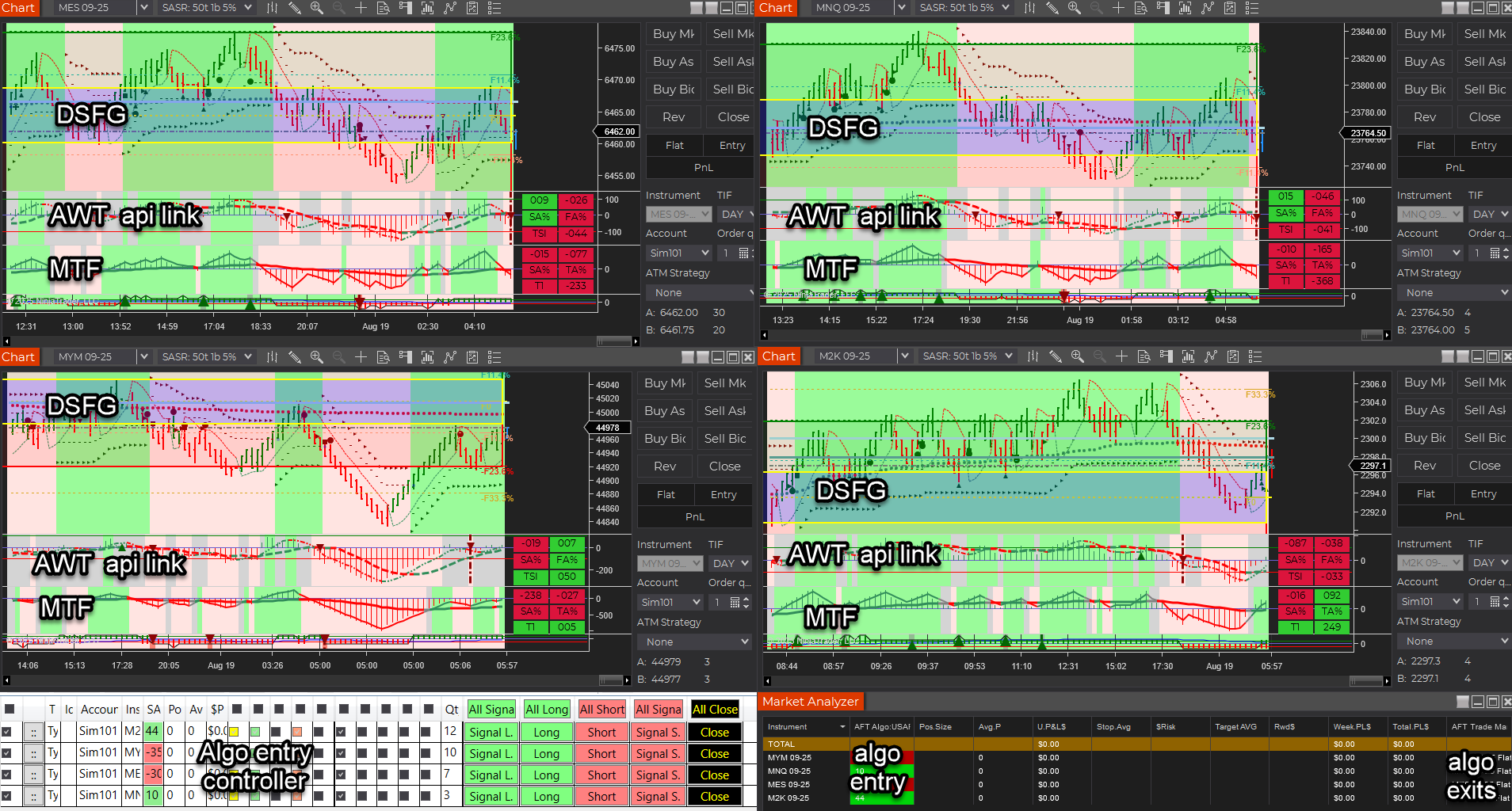
AFT8 Workspaces 4 Session Breakout MTF AWT

AFT8 Workspaces 4 Session Breakout Multiple Time Frame (MTF) bias filter TTF and  Alpha Web Trader (AWT) Bias Filter indicator linked to historical and real-time AWT cloud data – lag-free technicals.We’re pleased to announce a new release of AFT8 (Algo Futures Trader for NinjaTrader 8) and AWT (Alpha Web Trader), focused on performance, reliability, and a cleaner link between platforms.

Key Updates

  • Old account migration issue removed (cases where old accounts were sometimes moved incorrectly).
  • AWT Link to AFT8 — rewritten to use binary DAT file MMF producer/consumer IPC, replacing the former “named pipes” implementation.
    • Optimized memory handling to prevent a large system memory footprint.
    • Lightweight and faster by an order of magnitude using low-level OS kernel techniques across different .NET and OS versions.
    • No bottlenecks or growing memory issues; fast load on chart render for AWT indicators.
  • AFT + AWT combo showcased in AFT8 Workspaces 4 — Session Breakout and Trend Scalper.
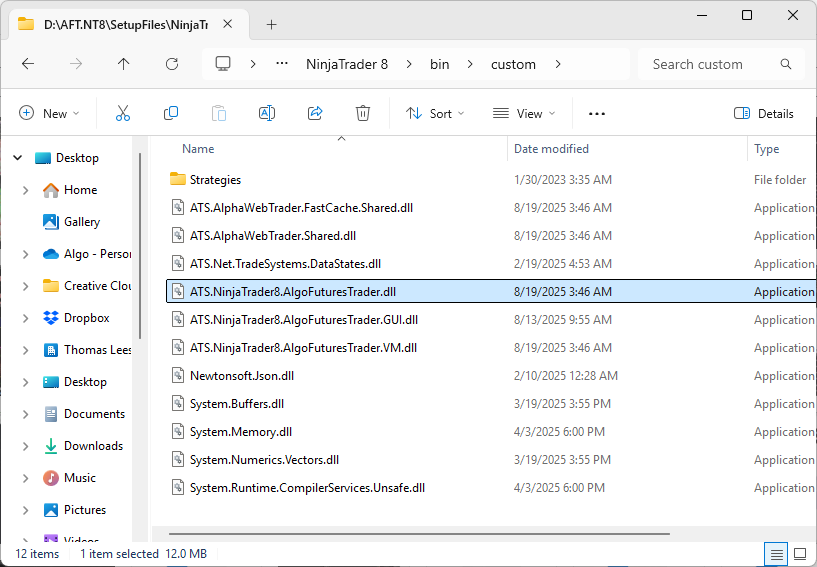
  • AFT8 binary files listing for installer:
AFT v20205081901 binary file list

AFT v20205081901 binary file list
  • ATS.NinjaTrader8.AlgoFuturesTrader.dll
  • ATS.NinjaTrader8.AlgoFuturesTrader.GUI.dll
  • ATS.NinjaTrader8.AlgoFuturesTrader.VM.dll
  • ATS.AlphaWebTrader.FastCache.Shared.dll
  • ATS.AlphaWebTrader.Shared.dll
  • ATS.Net.TradeSystems.DataStates.dll
  • Newtonsoft.Json.dll
  • System.Buffers.dll
  • System.Memory.dll
  • System.Numerics.Vectors.dll
  • System.Runtime.CompilerServices.Unsafe.dll

AWT Desktop was also updated as part of this release: 2025.8.19.1.

Filed Under: AFT8, NinjaTrader 8, ninjatrader automated trading Tagged With: AFT8 Release, AFT8 update

Does ATS Offer Prop Trading Systems?

August 16, 2025 by Tom Leeson

Does ATS Offer Prop Trading Systems, which settings are best for trading prop, which package to buy?

Short answer: Yes. ATS delivers proprietary, proven hybrid automated trading systems that are purpose-built for prop trading—created by real-deal traders for real-deal traders.

Why ATS is suitable for Prop Trading.

  • Minimal drawdown: Protect funded accounts with risk-aware tools.
  • Maximum profit potential: Systems engineered to capture high-quality setups.
  • Reduced emotion: Rule-based automation enforces discipline and consistency.
  • Proprietary technology: ATS is built on unique, field-tested systems not available anywhere else.
  • Trader community: Meet and learn from successful, proven performers in the VIP Group with AI Co-Pilot support.

The hybrid approach lets you combine manual discretion with automation for entries and management—ideal for navigating prop firm rules while maintaining control and accuracy.

Recommended Path & Settings for Prop Trading.

The best way to dial in settings is to join the Zero to Hero group and progress in live markets through three stages:

  1. Manual: Learn signal recognition and clean execution.
  2. Semi-Automated: Use assisted entries to boost consistency.
  3. Automated: Apply trade management and scaling rules systematically.

Once you grasp the workflow—signal → entry → management—you can tweak the turnkey baseline settings to fit your personal trade plan and prop firm constraints.

VIP Traders receive direct settings assistance and benefit from connecting with proven traders who are already performing successfully.

Best ATS Package for Prop Trading.

  • Trading E-Mini Micro Futures → ATS Premium Universal.
    Includes everything needed to trade micro contracts in a prop environment.
  • Trading E-Mini Futures → ATS Ultimate Universal.
    Full suite of proprietary tools, licensed for use on up to 2 PCs.
  • Get a 14-day full-feature trial to explore ATS. After completing Zero to Hero in Week 1, use Week 2 to focus on your trade plan and VIP workspaces. Attend the Trade Zone when available and work toward your goals in sim/demo or, where eligible and permitted, an evaluation, funded sim or live account.

Payment options: Monthly, annual, or one-time lifetime license. See AFT Pricing for details

Key Notes for Prop Traders

  • Proven proprietary systems: ATS is designed and battle-tested by real traders, for real traders.
  • Hybrid is king: Combine human oversight with automation for the best balance of control and accuracy.
  • Baseline → Personalization: Start with turnkey baselines, then adapt to your risk model and prop rules.
  • Trader community advantage: VIP members gain insights and support directly from consistently performing traders.

Get Started

Ready to trade with discipline and consistency? Join the Zero to Hero group, connect with the VIP Trading Group of successful, proven performers, and choose the ATS package that matches your instrument size.

In short: ATS is a proprietary, proven system built by real traders for real traders. With hybrid automation, VIP mentorship, and tailored packages, it’s an excellent choice for prop trading success.

Filed Under: AFT8, ninjatrader automated trading, prop firm trading Tagged With: AFT8, automated futures trading, best automated futures trading software, Hybrid Automated Trading Systems

  • 1
  • 2
  • Next Page »
  • NinjaTrader Automated Trading
  • automated futures trading
  • automated trading systems
  • Day Trading Futures
  • Get Started Day Trading Futures
  • VIP Trading Group Live Market Trade Along
  • Secret to Day trading futures success
  • AFT8 for NinjaTrader 8
  • Futures Algo Trading Systems
  • Market News
  • NinjaTrader Free Trading Platform
  • Legal Notices
  • AFT Legal Info
  • Terms
  • FULL RISK DISCLOSURE
  • Privacy Policy
  • Cookie Usage
  • About AlgoFuturesTrader
  • Connect to AFT
  • Blog
  • Videos
  • Support
  • Contact
  • My account
  • Sitemap
  • Affiliates

Ninja Futures Trading
Algo Futures Trader Copyright Algo Trading Systems© 2026 ¡
AlgoFuturesTrader.com is owned & operated by Algo Trading Systems LLC. By using this website or products & services, you are bound by our Terms & subject to US legal jurisdiction only. Errors & omissions excluded.
AFT made in England, powered by MicroTrends NinjaTrader development

Disclaimer: Trading & investment carry a high level of risk. AlgoFuturesTrader does not make recommendations for buying or selling any financial instruments, nor do we offer trading or investment advice. We are a software company, and we only provide educational information on ways to use our sophisticated Algo Futures trading tools. It is up to our customers & readers to make their own trading & investment decisions, or consult with a registered investment advisor.

Risk Disclosure: Futures, CFDs, & forex trading carry substantial risk and are not suitable for every investor. An investor could potentially lose all or more than the initial investment. Risk capital is money that can be lost without jeopardizing one's financial security or lifestyle. Only risk capital should be used for trading, and only those with sufficient risk capital should consider trading. Past performance is not necessarily indicative of future results. Please read the full risk disclosure here.

Hypothetical performance results have many inherent limitations, some of which are described below. No representation is made that any account will or is likely to achieve profits or losses similar to those shown. In fact, there are frequently sharp differences between hypothetical performance results and the actual results subsequently achieved by any particular trading program. One of the limitations of hypothetical performance results is that they are generally prepared with the benefit of hindsight. In addition, hypothetical trading does not involve financial risk, and no hypothetical trading record can completely account for the impact of financial risk in actual trading. For example, the ability to withstand losses or adhere to a particular trading program despite trading losses are material points that can adversely affect actual trading results. Numerous other factors related to the markets or the implementation of any specific trading program cannot be fully accounted for in the preparation of hypothetical performance results and can adversely affect trading results.

Testimonials appearing on this website may not be representative of other clients or customers and are not a guarantee of future performance or success.

NinjaTraderÂŽ is a registered trademark of NinjaTrader Group, LLC. No NinjaTrader company has any affiliation with the owner, developer, or provider of the products or services described herein, nor do they endorse, recommend, or approve any such product or service.

We use cookies on our website to give you the most relevant experience by remembering your preferences and repeat visits. By clicking “Accept”, you consent to the use of ALL the cookies.
Do not sell my personal information.
Cookie SettingsAccept
Manage consent

Privacy Overview

This website uses cookies to improve your experience while you navigate through the website. Out of these, the cookies that are categorized as necessary are stored on your browser as they are essential for the working of basic functionalities of the website. We also use third-party cookies that help us analyze and understand how you use this website. These cookies will be stored in your browser only with your consent. You also have the option to opt-out of these cookies. But opting out of some of these cookies may affect your browsing experience.
Necessary
Always Enabled
Necessary cookies are absolutely essential for the website to function properly. These cookies ensure basic functionalities and security features of the website, anonymously.
CookieDurationDescription
cookielawinfo-checkbox-analytics11 monthsThis cookie is set by GDPR Cookie Consent plugin. The cookie is used to store the user consent for the cookies in the category "Analytics".
cookielawinfo-checkbox-functional11 monthsThe cookie is set by GDPR cookie consent to record the user consent for the cookies in the category "Functional".
cookielawinfo-checkbox-necessary11 monthsThis cookie is set by GDPR Cookie Consent plugin. The cookies is used to store the user consent for the cookies in the category "Necessary".
cookielawinfo-checkbox-others11 monthsThis cookie is set by GDPR Cookie Consent plugin. The cookie is used to store the user consent for the cookies in the category "Other.
cookielawinfo-checkbox-performance11 monthsThis cookie is set by GDPR Cookie Consent plugin. The cookie is used to store the user consent for the cookies in the category "Performance".
viewed_cookie_policy11 monthsThe cookie is set by the GDPR Cookie Consent plugin and is used to store whether or not user has consented to the use of cookies. It does not store any personal data.
Functional
Functional cookies help to perform certain functionalities like sharing the content of the website on social media platforms, collect feedbacks, and other third-party features.
Performance
Performance cookies are used to understand and analyze the key performance indexes of the website which helps in delivering a better user experience for the visitors.
Analytics
Analytical cookies are used to understand how visitors interact with the website. These cookies help provide information on metrics the number of visitors, bounce rate, traffic source, etc.
Advertisement
Advertisement cookies are used to provide visitors with relevant ads and marketing campaigns. These cookies track visitors across websites and collect information to provide customized ads.
Others
Other uncategorized cookies are those that are being analyzed and have not been classified into a category as yet.
SAVE & ACCEPT